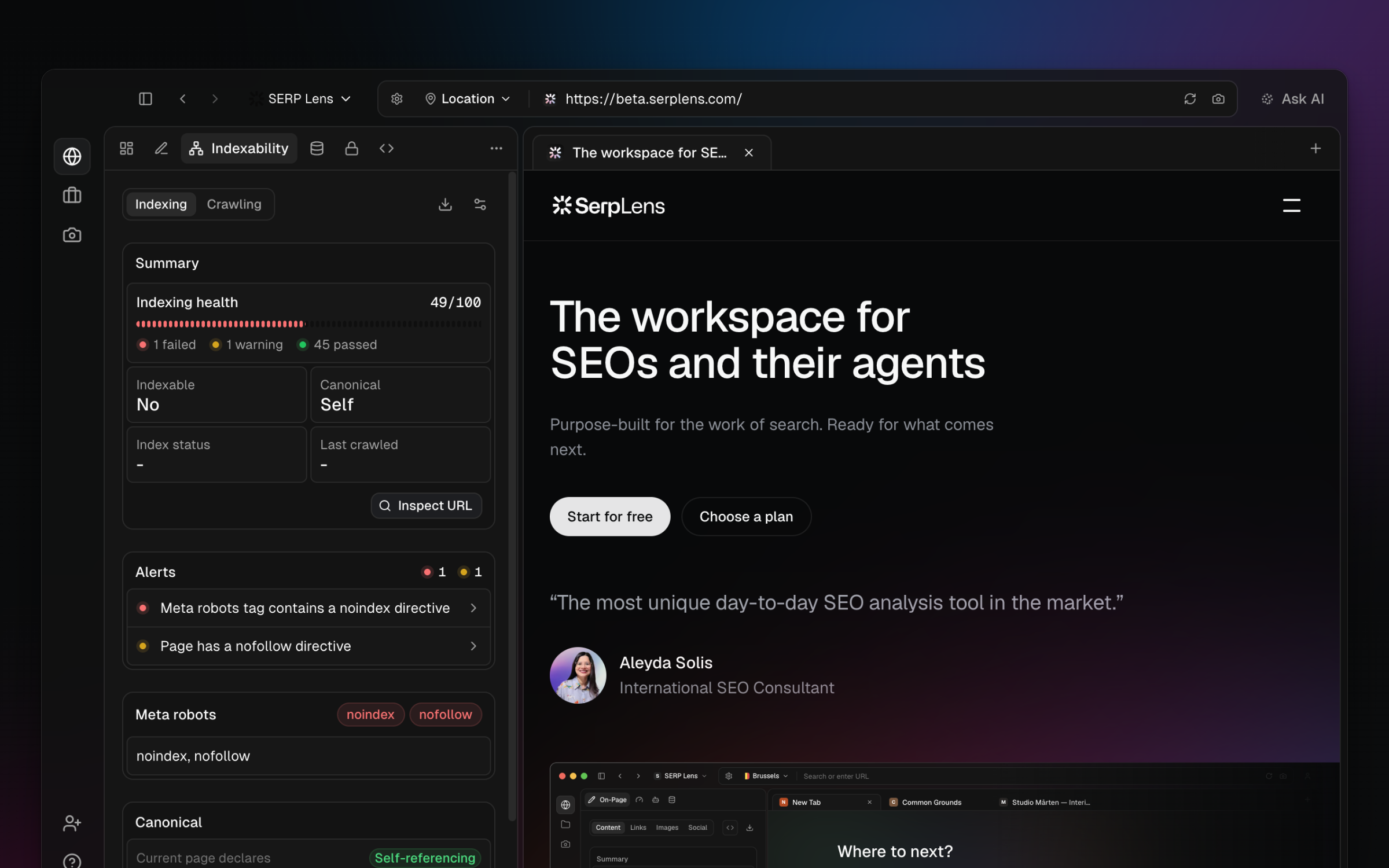
Canonical URLs
Check canonical URL declarations, detect mismatches, and debug common canonical issues with SERP Lens.
A canonical points search engines to the preferred URL for a page. SERP Lens reads the declaration in Indexability → Indexing and flags mismatches with the page URL.
What SERP Lens checks
Self-referencing canonicals
The canonical points to the page itself, marking the current URL as the preferred version.
Cross-page canonicals
The canonical points to a different page, marking that URL as the preferred version.
Missing canonicals
No canonical tag is present. Search engines can still choose a canonical, but SERP Lens has no declaration to compare with the page URL.
Common issues
| Issue | Problem | Fix |
|---|---|---|
| Canonical mismatch | The canonical URL doesn't match the page's actual URL or the intended canonical | Update the canonical tag to point to the correct preferred URL |
| HTTP canonical on HTTPS page | Canonical points to the HTTP version | Update to use the HTTPS URL |
| Relative URL | Canonical uses a relative path instead of absolute URL | Use a full absolute URL including protocol and domain |
| Multiple canonical tags | More than one canonical tag on a page | Remove duplicates — keep only one |
Open the canonical destination separately to confirm its live HTTP status. The canonical audit does not request the target URL for you.
Checking canonicals in SERP Lens
- Navigate to the page you want to check
- Open Indexability → Indexing
- The Canonical URL section shows the declared canonical, whether it's self-referencing or different, and flags any mismatches