SERP Compare
Compare 2 saved rank-tracking result sets and review movement, similarity, domains, and SERP features.
SERP Compare uses snapshots collected by rank tracking. Select a tracked keyword and date for each side, then inspect how the saved result sets differ.
Create a comparison
Open SERP Compare
Choose the SERP Compare view and select the project whose tracked data you need.
Choose the first snapshot
Select a tracked keyword, then choose a date that has collected data.
Choose the second snapshot
Select another tracked keyword and available date. Choose the same keyword on another date for a time comparison.
Review the result
Read the 2 result lists and the comparison summary beside them.
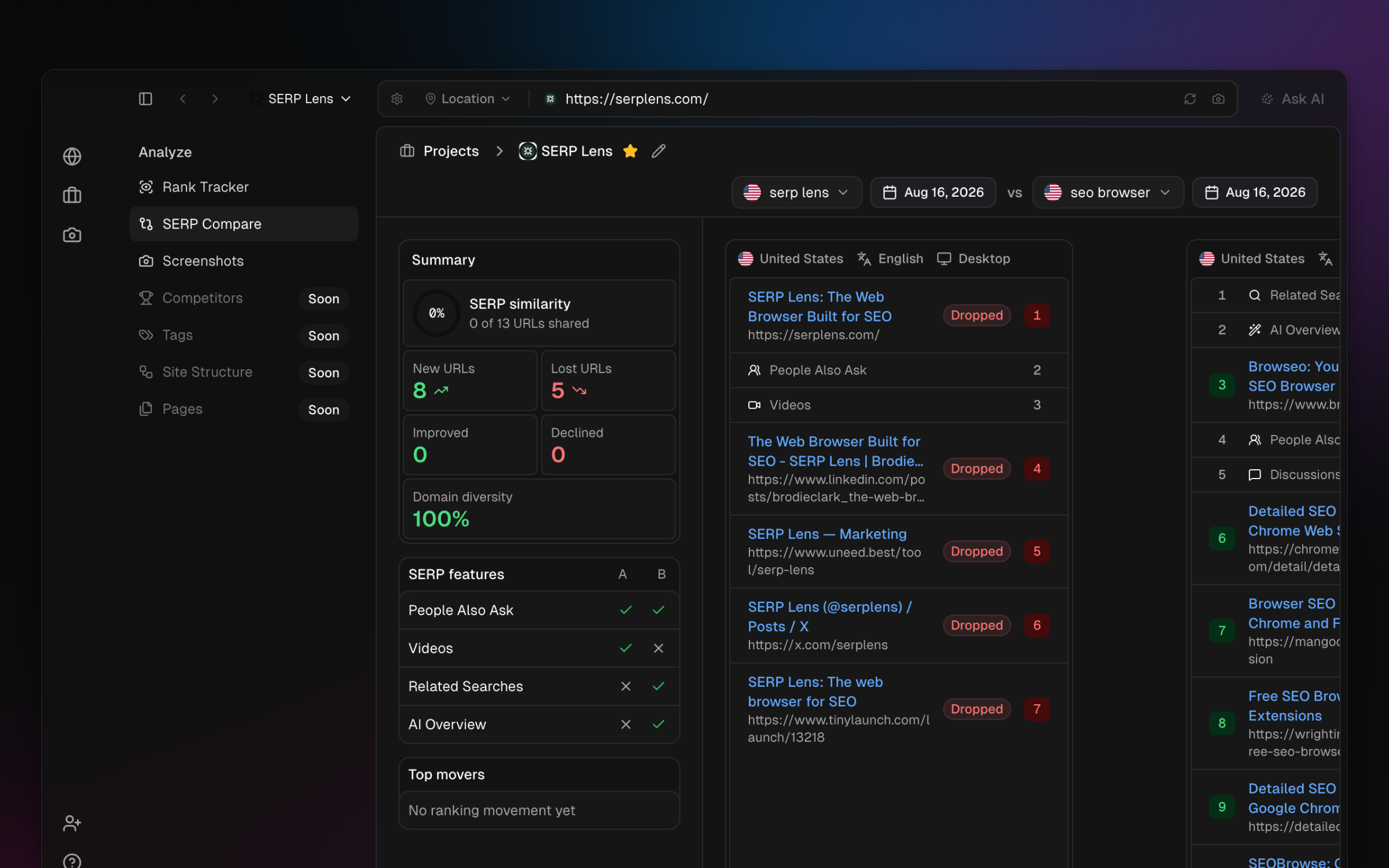
The selected keyword records carry their own device, location, and language context. Those values are not independent controls inside SERP Compare.
Comparison summary
The summary can include similarity, new and lost results, improved and declined positions, domain diversity, SERP-feature differences, and top movers when the selected data supports them.
Data requirement
SERP Compare needs saved rank-tracking results for both selections. If a date is unavailable, wait for a configured check to complete or choose another snapshot.