Managing screenshots
Search, filter, open, and permanently delete saved screenshots in SERP Lens.
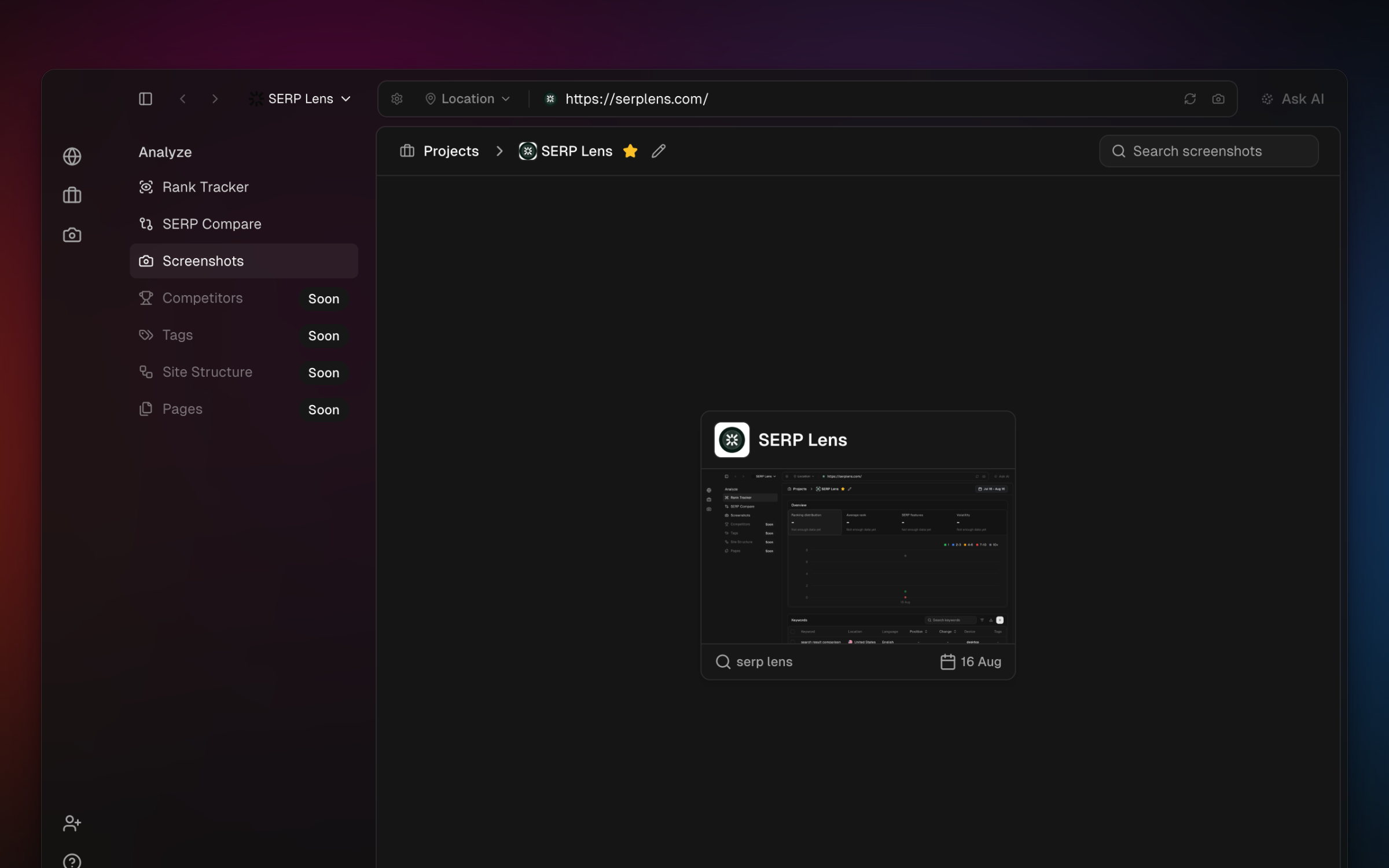
Open Screenshots from the main navigation. The page shows saved captures for the active team across its projects.
Find a screenshot
- Search — filter the library by screenshot name.
- Project filter — limit the grid to a selected project.
- Card details — review the thumbnail, title, creation date, and project information shown on each card.
Open a card to view or edit the saved screenshot.
Delete screenshots
Select 1 or more cards, then choose Delete from the bulk action. Confirm the deletion in the dialog.
Warning
Deleting a screenshot is permanent. SERP Lens does not move it to a trash folder.
Switch teams if the screenshot belongs to another team's library. Project and screenshot access follows the active team.