Competitor tracking
Add competitor domains to a project and compare their keyword positions with your own.
A project can store up to 10 competitor domains. Once you track keywords, SERP Lens records where those domains rank for the same terms.
Adding competitors
Open your project
Go to Projects and select the project you want to add competitors to.
Edit project settings
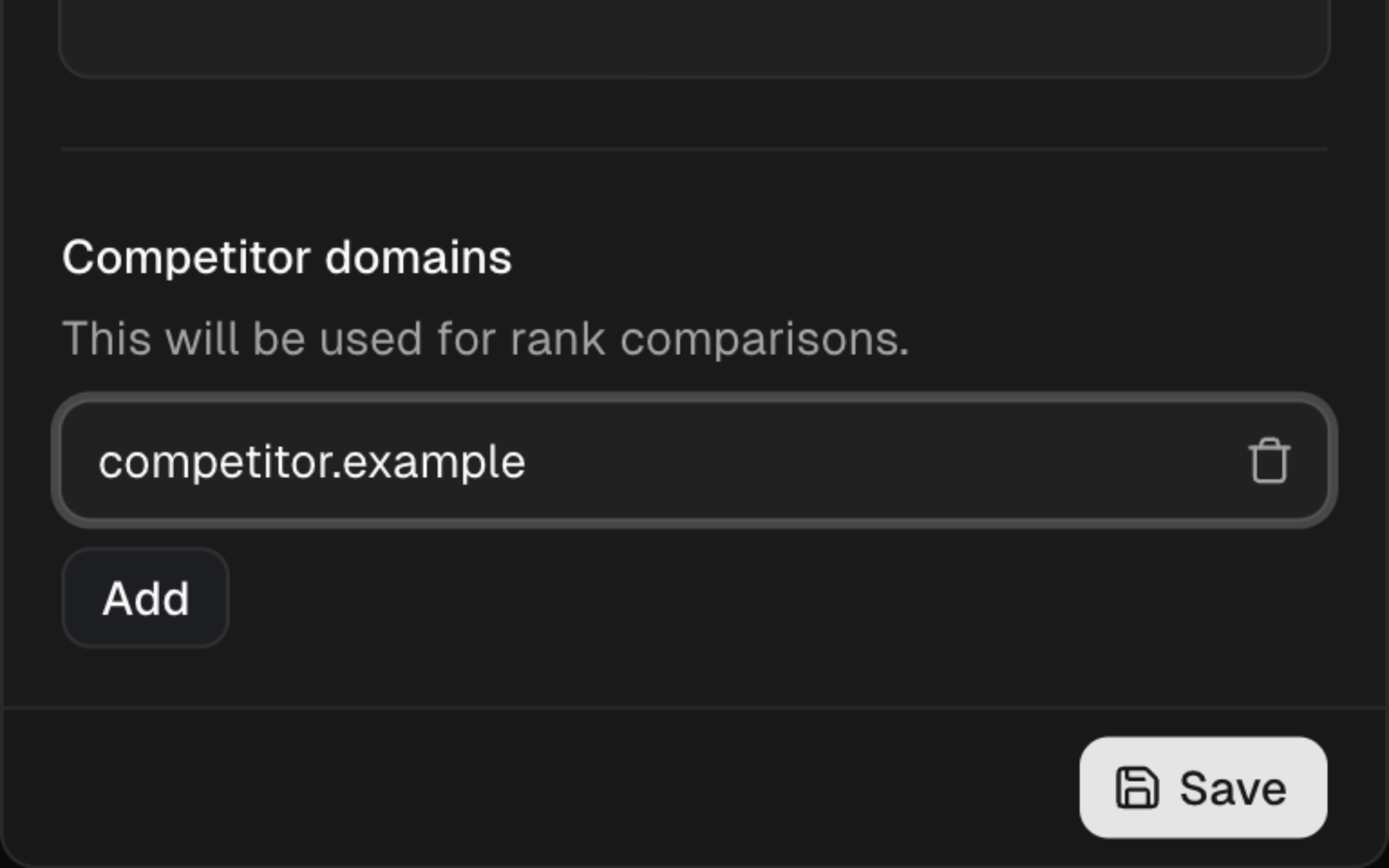
Click the settings icon and find the Competitor domains section.
Add domains
Enter competitor root domains (e.g.
competitor.com). You can add up to 10 competitors per project.Save
Save the project. Competitor rankings appear in your keyword tracking data going forward.
Competitor ranking data
Once competitors are configured and you have tracked keywords, open the keyword actions and choose Competitor history. The view charts competitor positions over the selected period alongside the project domain.
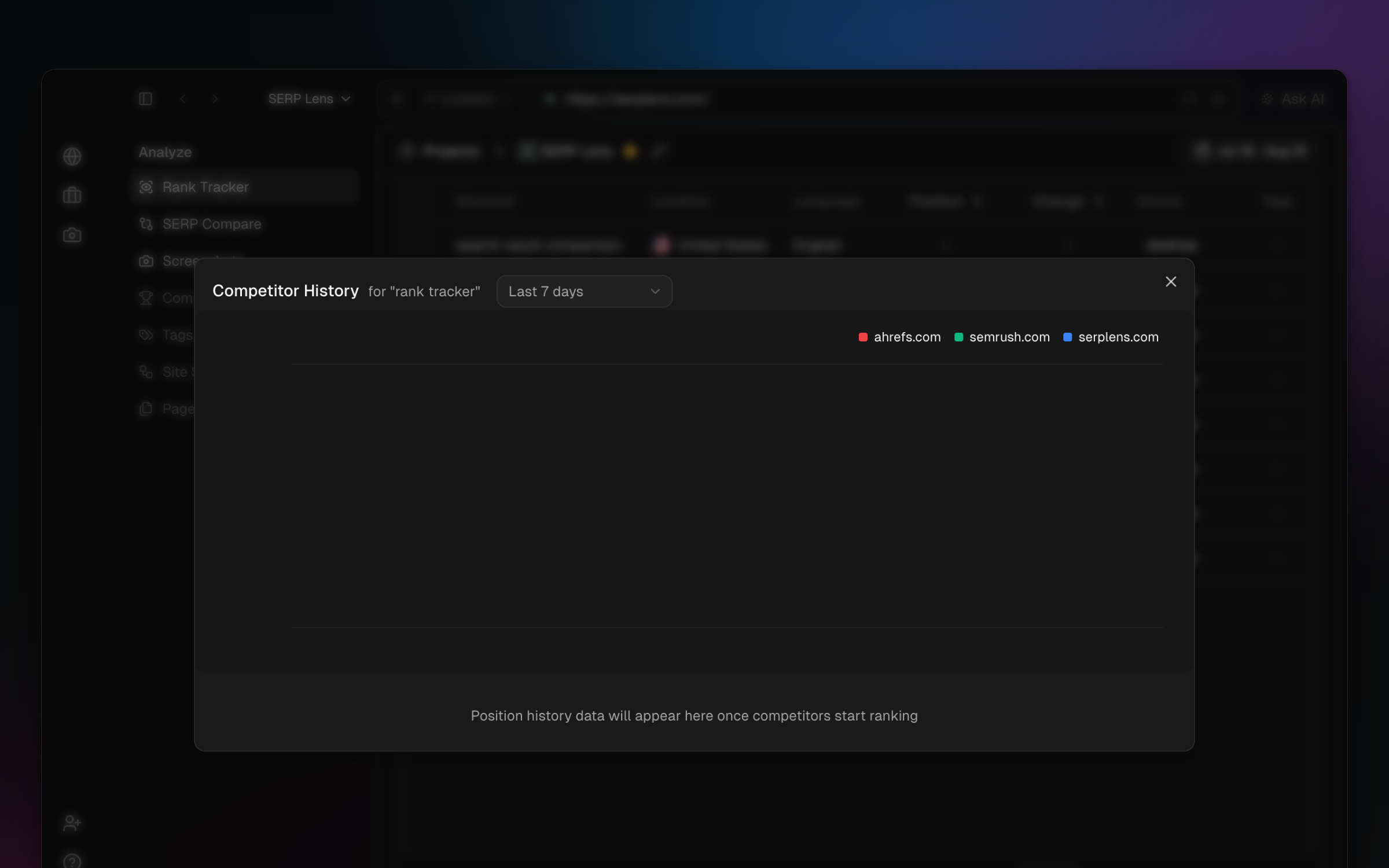
Use the chart to:
- Ranking gaps — find keywords where a competitor ranks and your project does not.
- Relative movement — see whether your project is gaining or losing ground.
- Outranking terms — find keywords where a competitor holds the better position.