Connecting to VPN
Choose a SERP Lens VPN location, manage the connection, and reconnect after changing teams.
Open the location selector from the browser topbar. It shows the active connection, available locations, and any access requirement for the current team.
Connect to a location
Open the location selector
Click the location control in the browser topbar.
Find a location
Browse the list or search by location name. Premium locations are marked in the list.
Connect
Select an available location. Keep the selector open until its status shows that the VPN is connected.
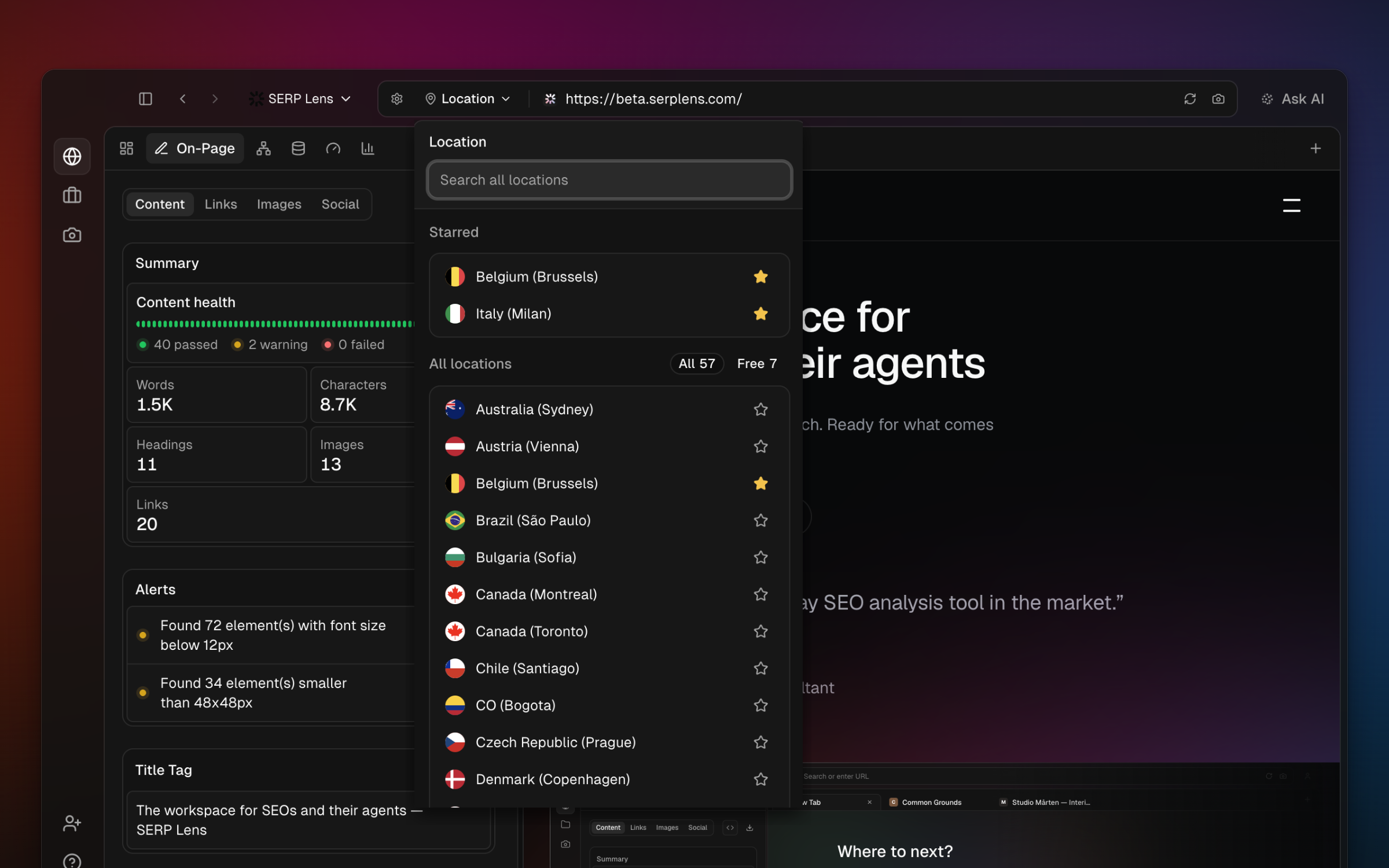
Select another available location to change the connection. You can also pause, resume, or disconnect from the active-location controls.
Starred locations
Use the star beside a location to keep frequently used choices together in the selector. Remove the star when you no longer need the shortcut.
Connection states
| State | Meaning |
|---|---|
| Disconnected | Browser traffic uses your normal network route |
| Connecting | SERP Lens is establishing the selected VPN route |
| Connected | Browser traffic is using the selected location |
| Paused | The VPN route is temporarily paused |
| Error | The connection did not complete |
Switching teams
VPN access belongs to the active team. Switching teams disconnects the current VPN session, even when the next team also has VPN access. Open the location selector and connect again after the switch.