Teams and organizations
Understand how SERP Lens keeps projects, integrations, saved data, usage, and billing within an active team.
Projects, integrations, saved work, usage, and billing belong to the active team. A person can belong to more than 1 team and hold a different role in each one.
Team-owned data
- Projects and rankings — project settings, tracked keywords, and ranking history.
- Screenshots — saved screenshots and their project relationships.
- Integrations: connected Google Search Console accounts.
- Plan and usage — subscription, members, balances, and feature access.
Switching the active team reloads these areas. It also disconnects the current VPN session.
Create a team
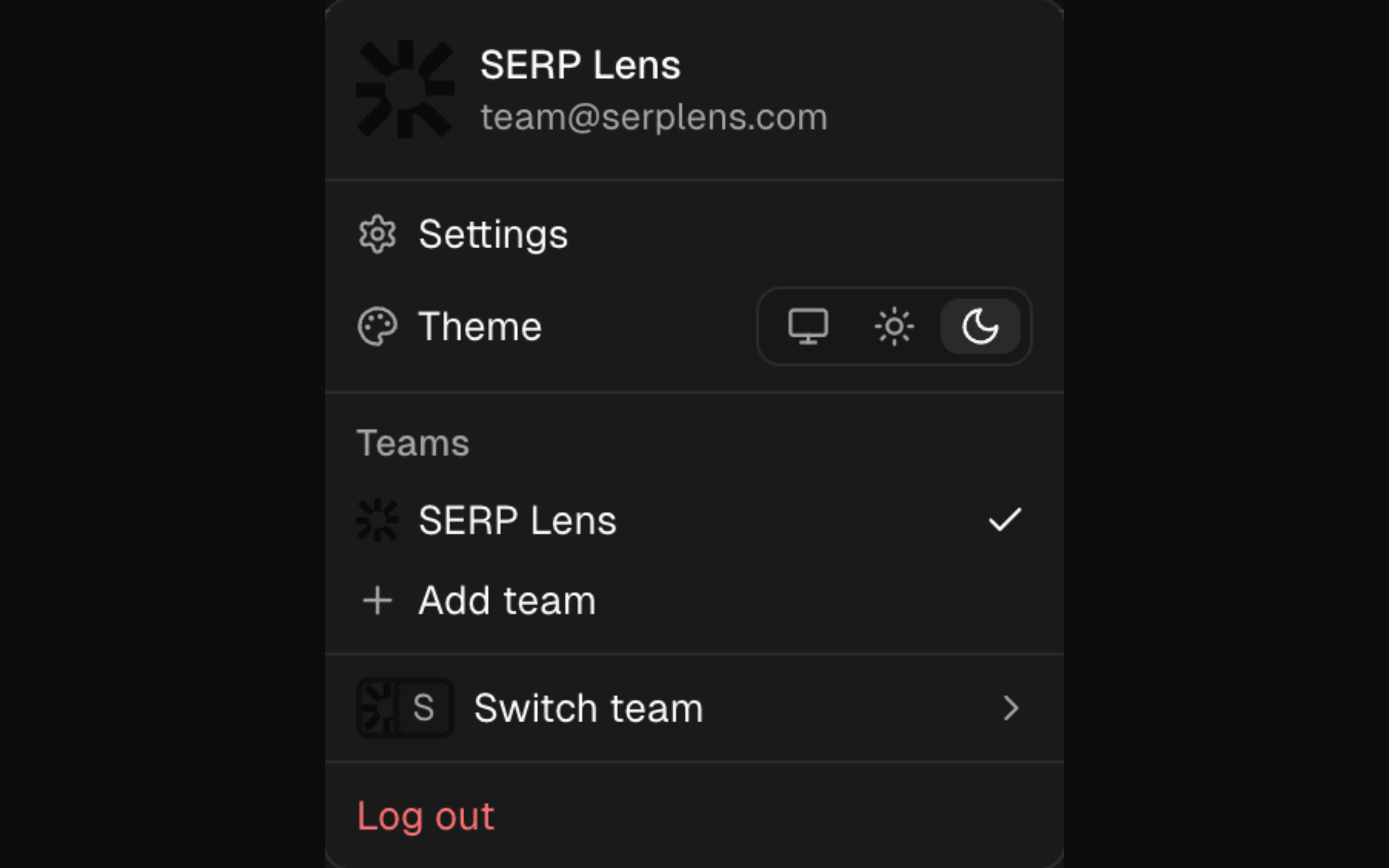
- Open the active-team menu in the browser topbar.
- Select Add team.
- Enter the team details requested by the form.
- Create the team, then wait for it to become active.
You can also open Settings → Teams and choose Create team.
Roles
SERP Lens shows 3 team roles:
- Owner — owns the team and its highest-level administration.
- Admin — manages the team areas allowed by the current policy.
- Member — uses the shared product without team-owner control.
Specific controls remain hidden or disabled when your role does not allow them. Billing, integrations, and people management each check permission separately.