Managing projects
Edit project details, organize with favorites, sort your project list, and delete projects in SERP Lens.
Project settings control the name, domain, goal, competitors, and image. Favorites and sort order change how projects appear in the list and sidebar.
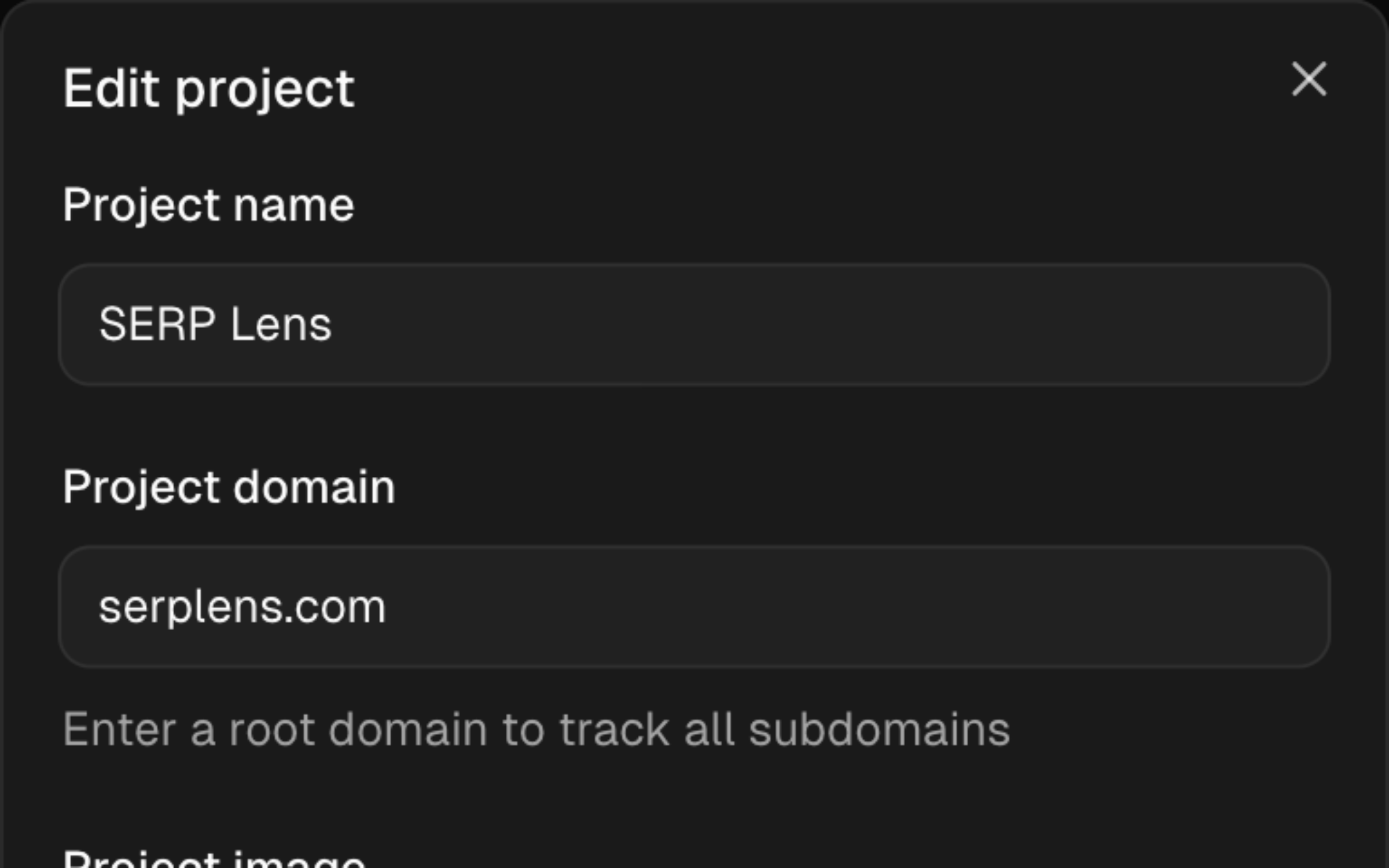
Editing a project
Open a project and click the settings icon to edit:
- Project name — update the label
- Domain — change the tracked root domain
- Project goal — update or add a description
- Competitor domains — add, remove, or change competitors (up to 10)
- Image — upload a new image or re-fetch the favicon
Save the form to apply the changes.
Favorites
Click the star on a project card to add or remove it from your favorites. Favorited projects appear in the left sidebar, so you can open them without returning to the project list.
Sorting
Sort your project list by:
| Sort option | Description |
|---|---|
| Name A–Z | Alphabetical order |
| Name Z–A | Reverse alphabetical order |
| Latest | Latest-first order |
| Favourite | Favorited projects first |
Deleting projects
Open a project's actions and choose delete. The confirmation dialog identifies the project that will be removed.
Deleting a project permanently removes all associated keywords, ranking history, and screenshots. This cannot be undone.
Project limits
Check the active team's project limit and current usage in Settings → Billing.
If you've reached your limit:
- Delete projects you no longer need
- Upgrade your plan for more capacity