Capturing screenshots
Capture a browser viewport, selected area, full page, scrolling region, app window, or desktop screen.
Open the command palette with Cmd K on macOS or Ctrl K on Windows and search for capture to see the screenshot modes available in the current context.
Capture modes
| Mode | Captured area |
|---|---|
| Browser viewport | The visible content inside the active browser tab |
| Browser area | A region you select inside the page |
| Full web page | The complete scrollable page |
| Scrolling capture | A scrollable region captured over a manual range |
| App window | The complete SERP Lens window |
| Desktop screen | The selected desktop display |
The operating system can ask for screen-recording permission before app-window or desktop capture. Grant it only when you intend to capture content outside the page.
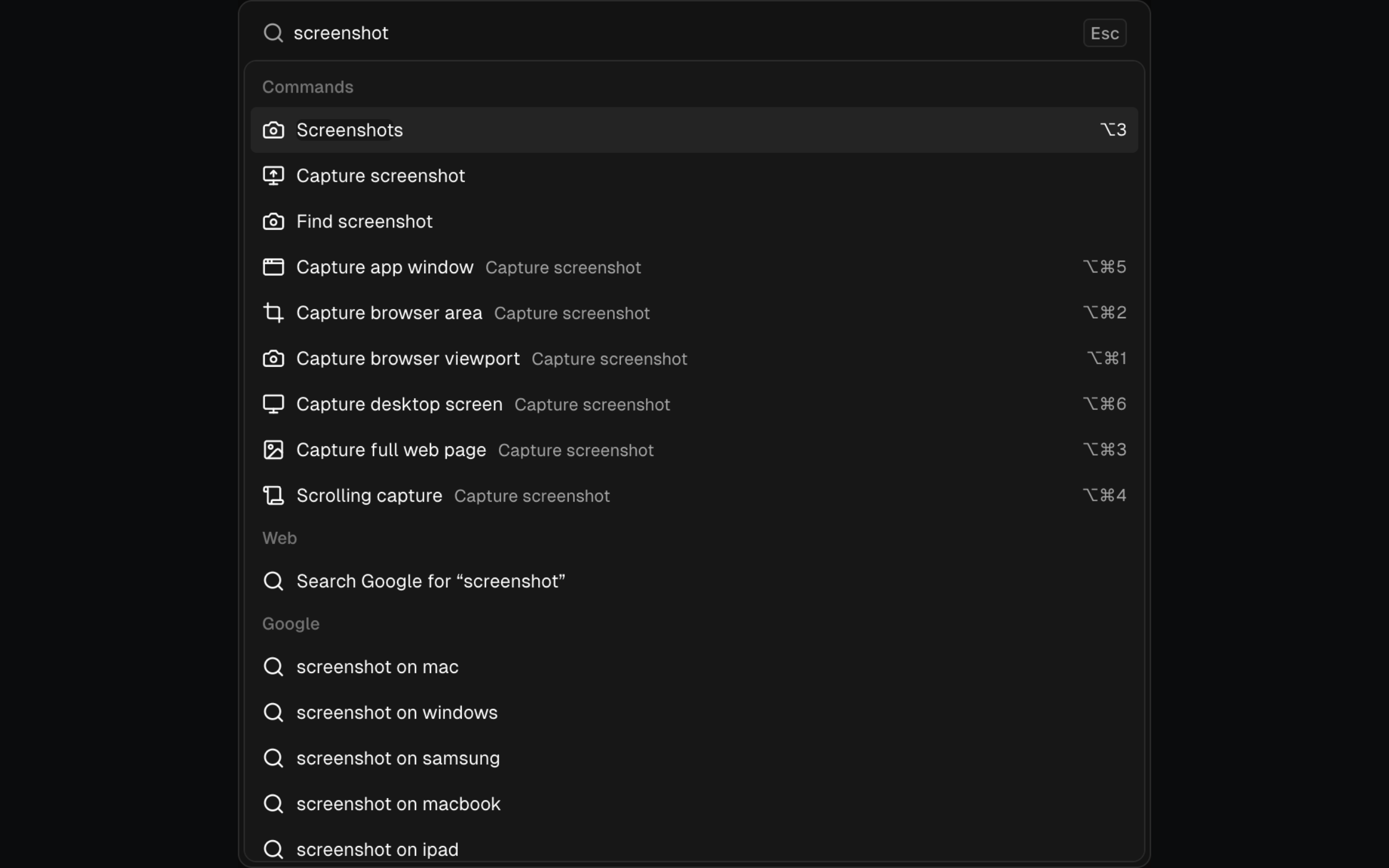
Shortcuts
Use Cmd Option 1–6 on macOS or Ctrl Alt 1–6 on Windows. The number follows the mode order in the table above.
Save a screenshot
After capture, use the editor to crop or annotate the image. Choose Save, enter a Screenshot name, select a project, then confirm Save.
The editor can also copy the image to the clipboard or download a PNG when you do not need a saved project record.