Quick start
Sign in, choose a team, open a page, inspect its analysis, and save your first piece of work.
Install SERP Lens on macOS or Windows, then follow these steps to open a page, inspect it, and save your first work.
Walkthrough
Sign in and choose a team
Complete the sign-in flow, then select the team whose projects, integrations, plan, and saved data you want to use. Create a team from the browser topbar if you do not have one yet.
Open a page
Enter a URL or search query in the omnibar. Press Cmd L on macOS or Ctrl L on Windows to focus it from anywhere in the browser.
Inspect the page
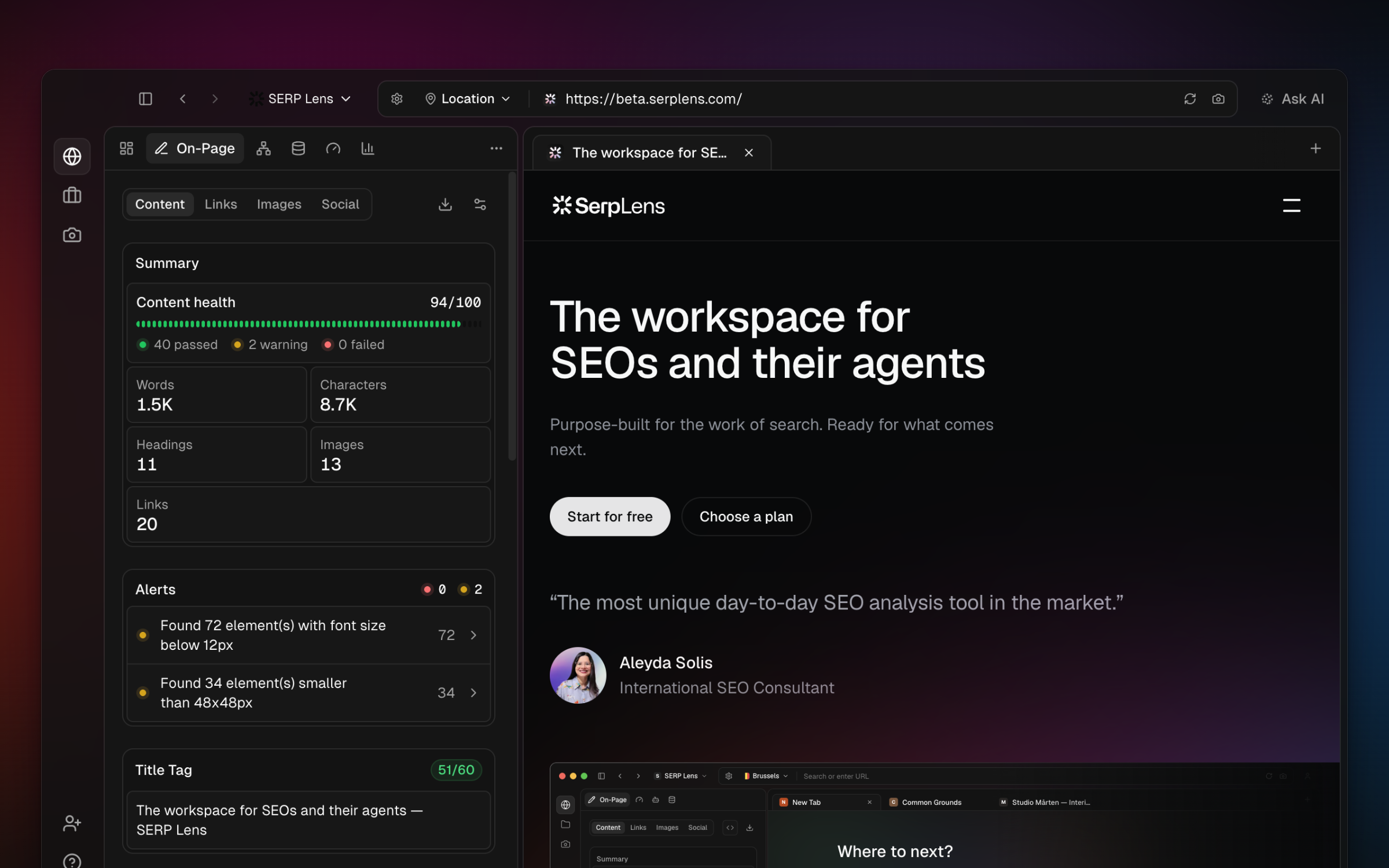
Open the content panel and start with Overview and Alerts. Move to On-Page, Page Speed, Schema, JavaScript, Indexability, or another panel for the task at hand. Some panels require a plan capability or connected integration.
Ask the AI agent
Open the AI panel, attach the current tab, and ask a specific question about the page. Review tool approvals before allowing an action to run.
Create a project
Open Projects, choose New project, then enter the project name, domain, and any optional goal, competitor domains, or image.
Track a keyword
Open the project and choose Add keywords. Enter the keywords, then select locations, languages, devices, and a refresh interval. Review the displayed ranking-credit requirement before saving.
Save evidence
Open the command palette with Cmd K on macOS or Ctrl K on Windows, search for a screenshot capture mode, then annotate or crop the result. Save it with a screenshot name and project, or export the PNG.
Optional regional test
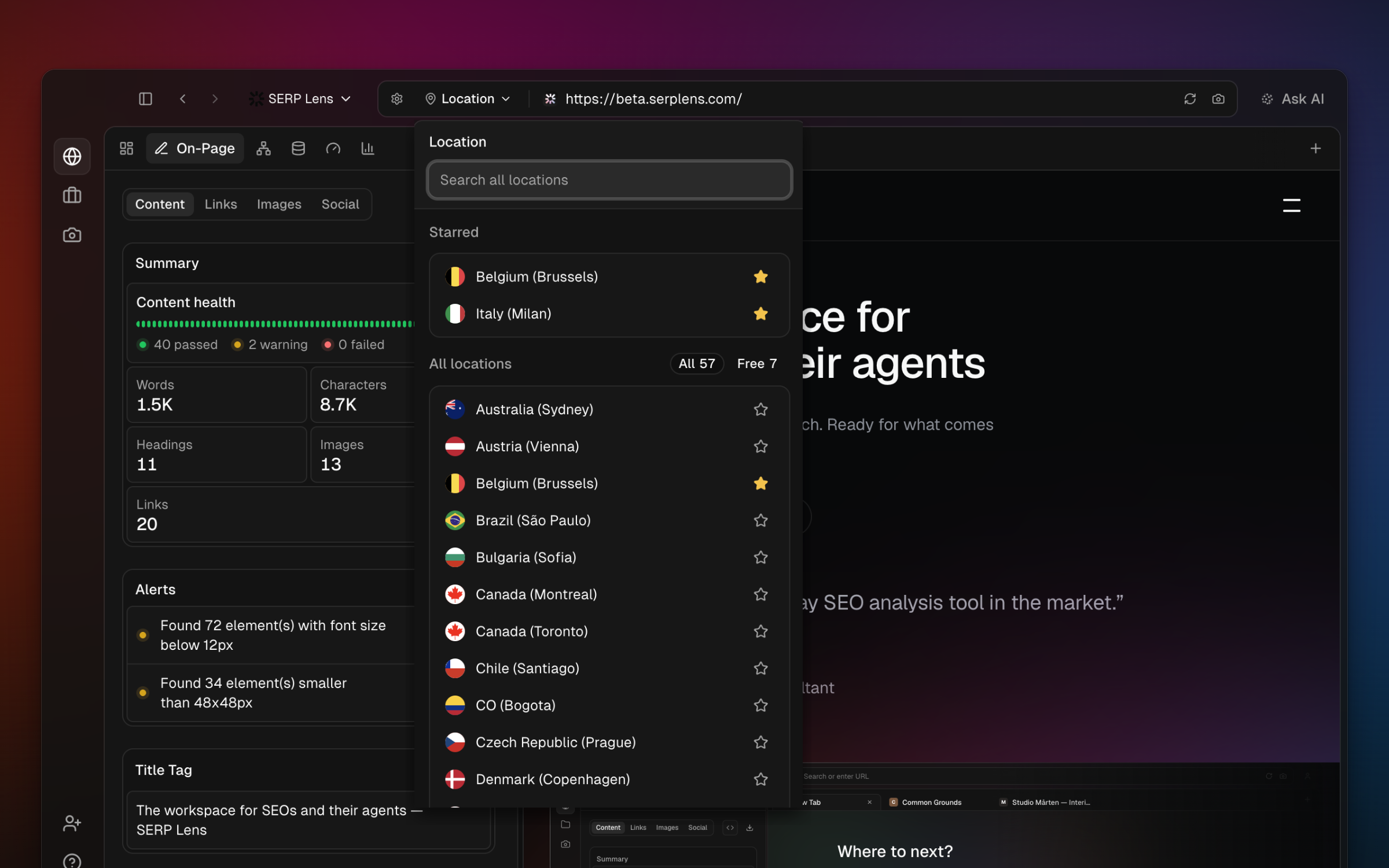
Open the browser location selector and connect to a VPN location available to the active team. Record the search domain, language, account state, and other settings with the observation because a VPN route is only 1 regional signal.